

Order credits and invoices

Documentation

Order credits and invoices
TL;DR
- Buy credits from Buy Orders on the Dashboard. One credit is one order.
- Your Total and Remaining credits show on the Marketplace Accounts card.
- If you do not have enough credits for a batch, nothing is processed and nothing is charged.
- Every purchase gets a GST invoice. Find it under Invoices and download the PDF.
- Your billing name, address and GSTIN come from Settings → Company Details.
Order credits pay for the orders HappySellers processes for you. This page shows you how to buy them, how to see what you have left, and where to find your GST invoices. Current prices are on the Pricing page.
Where to find it
- Buying credits: Dashboard in the sidebar, on the Marketplace Accounts card.
- Invoices: click your profile at the foot of the sidebar, then Invoices.
Before you start
- Sign in at app.happysellers.in.
- Have your billing details ready: business name, phone number, address, state and, if you have one, your GSTIN. You are asked for them only once.
Buy order credits
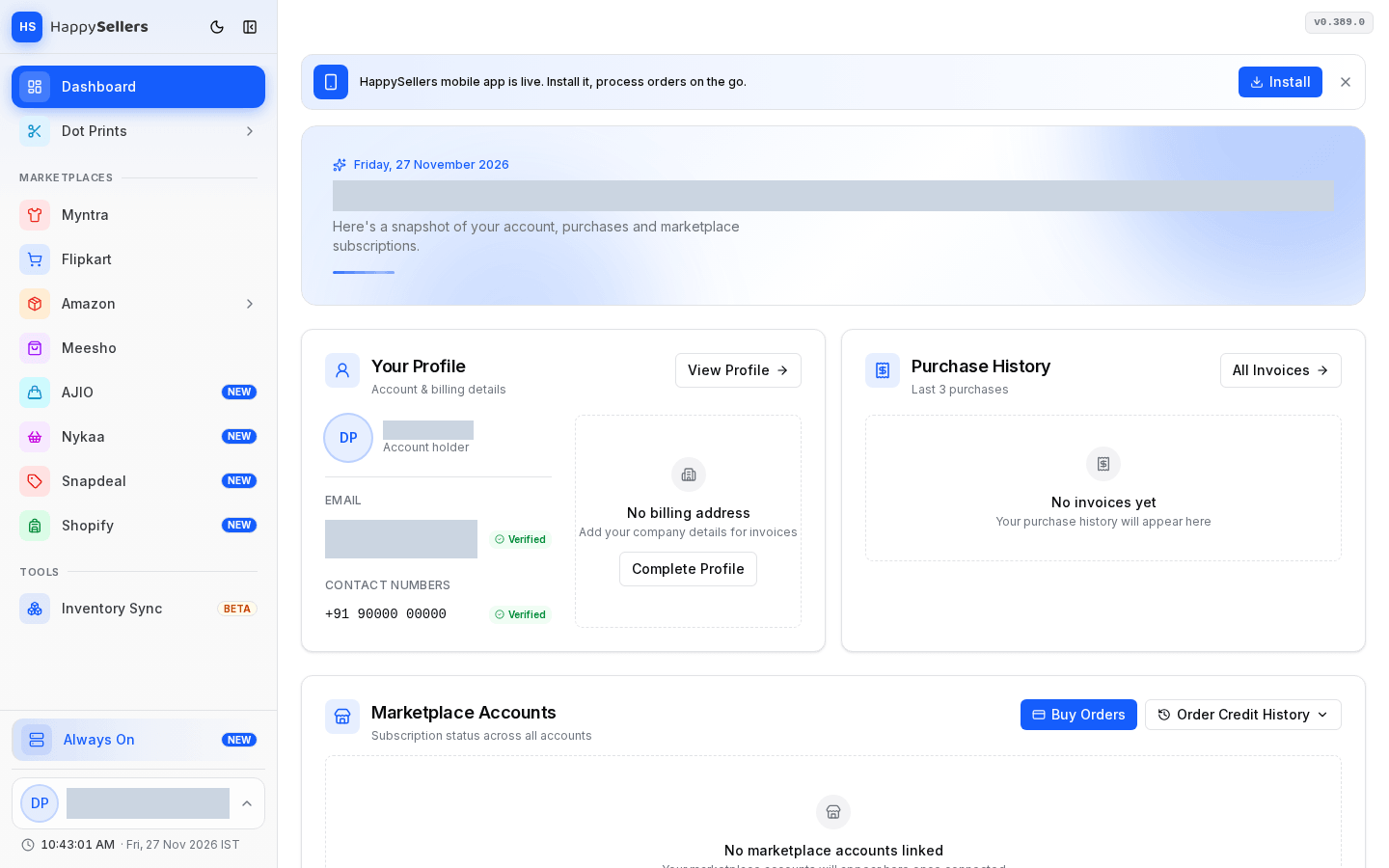
- Open Dashboard and find the Marketplace Accounts card.
- Click Buy Orders. The Buy Order Credits pop-up opens.
- Move the Number of Orders slider. The pop-up shows the Price per order, what You save and the Total Base Amount. The more you buy, the lower the price per order.
- Click Buy … Credits. The Order Summary opens with the price breakdown and the GST.
- Check it and click Proceed to Payment. If no billing address is on file yet, fill in Your billing address first and click Save and continue to payment.
- Pay in the secure payment window that opens.
- When you see Purchase Successful!, your credits are already on your account. Click Close.
If you have a wallet balance, the pop-up shows it and takes it off the amount. If the wallet covers the whole purchase, the button reads Confirm Purchase and no payment is needed.
Check your credit balance
The Marketplace Accounts card on the Dashboard shows:
- Total: all credits in your active packs.
- Remaining: what is left to use.
- Wallet: shown only when you have a wallet balance.
Click Order Credit History to see every pack: how many you Purchased, how many are Used and Remaining, the purchase date, the expiry date and the status. Click a pack to see where its credits went: date, marketplace, account and credits used. A warning sign next to the expiry date means the pack runs out soon.
When you run low
- HappySellers checks your balance before it processes a batch. If you do not have enough, it stops with a message such as "You have no orders left on this account and no add-on credits left" or "Cannot process … orders — you have … add-on credits left".
- When that happens, nothing in that batch is processed and nothing is charged. Buy more credits and run it again.
- If your marketplace account has a plan allowance (such as the Free Plan), orders use that first. After that, credits are used, the ones that expire soonest first.
- If you run the same picklist or orders again, you are not charged twice for work already paid for.
Download your invoices
- Click your profile at the foot of the sidebar and choose Invoices.
- Find the invoice. You can search by invoice number, name or GST number, and switch between All, Invoices and Credit Notes.
- Click Download on its row. The PDF is saved under the invoice number.
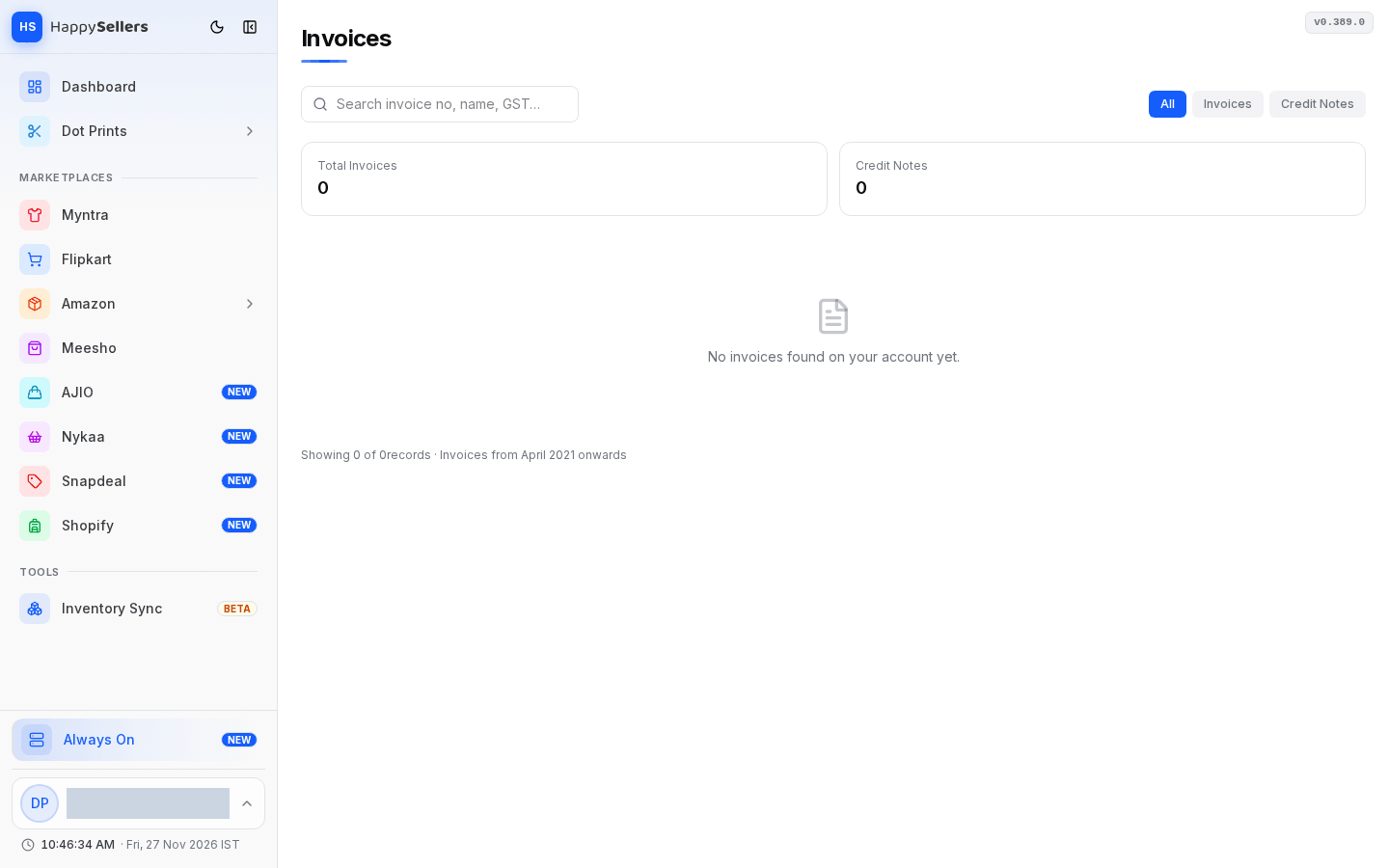
Each row shows the invoice number, type, product (for example Buy Credits or Always On), date, Billed To, GST No., the taxable amount, CGST, SGST, IGST and the total. Click Invoice #, Date or Total to sort.
Options
| Option | What it does |
|---|---|
| Number of Orders | How many order credits you buy in one go. |
| Wallet balance | Taken off the amount automatically when you have one. |
| Search on Invoices | Finds an invoice by number, name or GST number. |
| All / Invoices / Credit Notes | Shows every document, only invoices, or only credit notes. |
| Download | Saves that invoice or credit note as a PDF. |
Good to know
- Credits are valid for 365 days from purchase, used or not. They cannot be moved to another HappySellers account.
- One pool of credits works across all the marketplace accounts linked to your HappySellers account.
- Your GST invoice is raised from your billing address and GSTIN. To change them, go to Settings → Company Details. The change is used for invoices raised after you save. Invoices already issued keep the details they were raised with.
- The GST number must match the state you pick. If it does not, the form tells you which code it must start with.
- If you bought credits before your billing address was on file, the dashboard asks for it (We need your billing address) before you can carry on. Fill it in once and your invoice is raised.
- If the payment went through but the purchase did not finish, you see We could not finish your purchase or We could not confirm this payment. Try again uses the same payment and never takes a second one. If there is no Try again, do not pay again: contact support and we will add your credits or refund you.
Related
FAQ
Where do I buy order credits?
On the Dashboard. Click Buy Orders on the Marketplace Accounts card, pick the number of orders and pay.
What happens if I run out of credits in the middle of work?
HappySellers checks before it processes a batch. If your credits do not cover it, nothing in that batch is processed or charged. Buy more credits and run it again.
Where is my GST invoice?
Click your profile at the foot of the sidebar, open Invoices and click Download on the invoice you need.
How do I put my GSTIN on my invoices?
Add it under Settings, Company Details, before you buy. Invoices raised after you save use it; invoices already issued keep the details they had.
I was charged but the credits did not appear. What should I do?
Do not pay again. If the pop-up offers Try again, press it, because it reuses the same payment. Otherwise contact support and we will add your credits or refund you.