

Inventory Sync (beta)

Documentation

Inventory Sync (beta)
TL;DR
- It is a beta (a preview program): it may not work fully yet, and your inventory data may be reset at any time.
- It covers Flipkart, Amazon SellerFlex and Myntra. Meesho is not open to sellers yet.
- Every marketplace call goes through your Always On workspace browser, never your everyday Chrome.
- Only master SKUs you switch to Synced are touched: their orders are recorded and their stock is pushed.
- Update stock adds (Inward) or removes (Outward) units and works out the new count for you.
- Virtual stock keeps a SKU live at 0 until you confirm the physical stock you added.
Inventory Sync is for sellers who list the same product on more than one marketplace. Each marketplace counts its own stock. Inventory Sync links those listings to one master SKU, so an order on one marketplace lowers the stock on the others. It is a beta, so read Good to know before you rely on it.
Where to find it
Tools → Inventory Sync in the left sidebar of the dashboard. The page itself is called Inventory Management and carries a BETA badge. The first time you open it, you go through a short onboarding first.
Before you start
- HappySellers Always On, with your marketplace accounts connected in the Always On workspace browser. Inventory Sync reads catalogs, pushes stock and checks orders only through Always On. If no Always On browser is connected for an account, nothing is sent and you see "No Always On workspace browser is connected for this account — inventory runs only through Always On."
- Your Flipkart, Amazon SellerFlex or Myntra accounts already linked to HappySellers.
Set up: onboarding
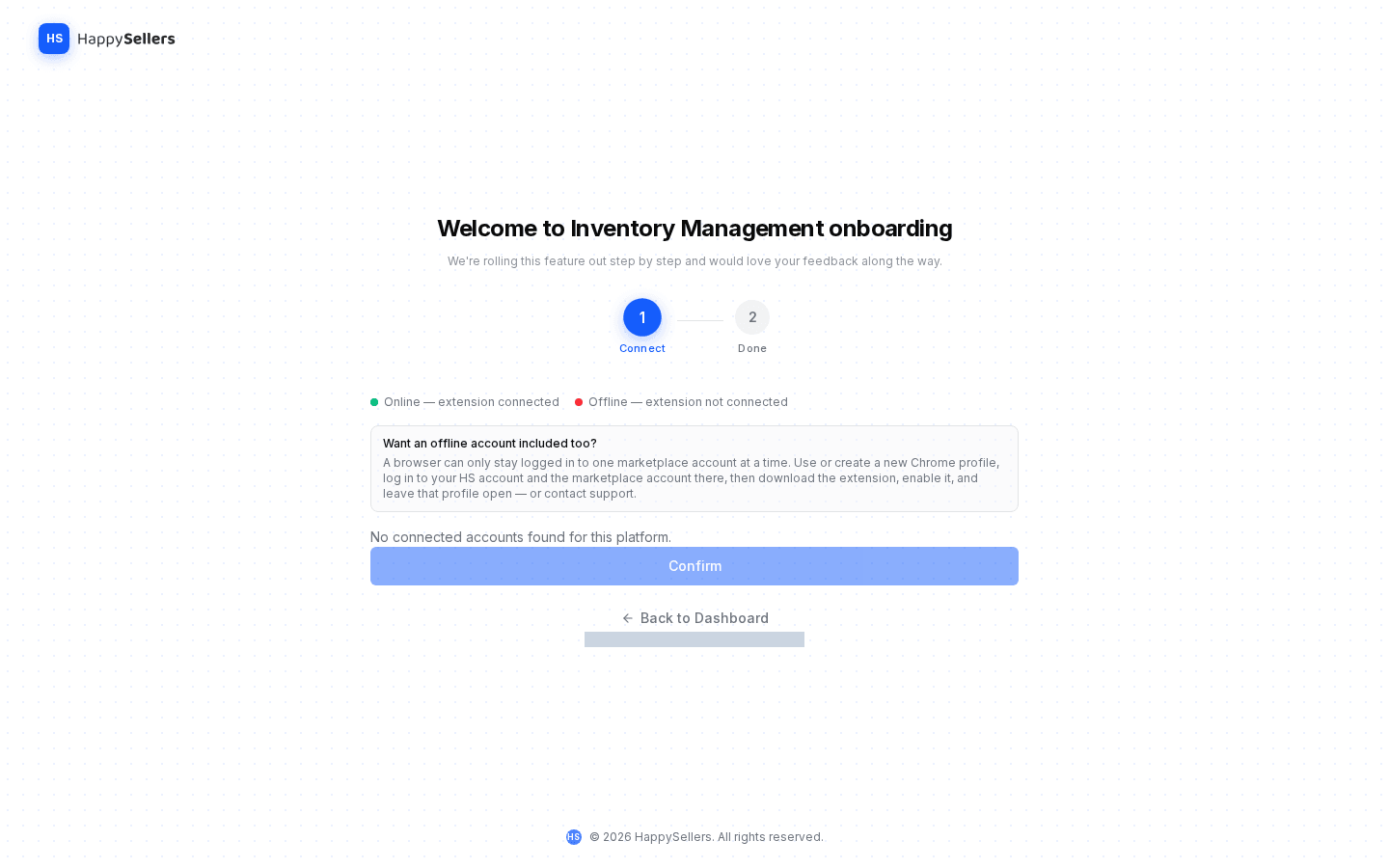
- Open Tools → Inventory Sync. With no catalog yet, you land on Welcome to Inventory Management onboarding.
- Under Connect, tick the accounts you want. Accounts marked Online — extension connected can be ticked; Offline — extension not connected accounts cannot. Select all online accounts ticks every online one.
- Click Confirm. HappySellers fetches each account's catalog and shows Fetching your catalog….
- When every account is done, the page says You connected these accounts — done!. Matching runs in the background. Click Go to Dashboard to open the inventory page.
Matching runs automatically only once, at onboarding. It groups listings whose SKU code or title match closely, and keeps apart listings whose brands differ. Anything it is not sure about is left for you on Unmatched SKUs.
Master SKUs and listings
The page has these tabs:
- Matched Products: one row per product with Platforms, Total Stock and Updated. Open a product to see its master SKUs and, under each, the marketplace listings linked to it with their stock.
- Unmatched SKUs: listings not linked to any master SKU yet. Each row has Create Product, Create Master SKU, Attach to Existing MSKU and Do Not Sync.
- Orders and Returns: orders of your synced SKUs (see below).
- Marketplace Catalogs: each linked account's own catalog, one tab per account.
To link listings by hand:
- On Unmatched SKUs, click Create Master SKU, add the same product's SKUs from your other marketplaces, and create it. A new product is made for it.
- Or click Attach to Existing MSKU to add a listing to a master SKU you already have.
- On a product row, Add Master SKU creates a new master SKU or links an existing one from another product. Add SKU from Marketplace adds a listing under one master SKU.
- Switch the master SKU's Synced toggle on. It is off for every new master SKU.
Total Stock for a product adds up, for each of its master SKUs, the highest stock among its listings.
Update stock
- In Matched Products, click the pencil beside a listing's stock. Update stock opens.
- Pick + Inward (stock coming in) or − Outward (stock going out).
- Enter How many units? (a whole number, 1 or more).
- Under New stock (calculated for you), tick the listings to change. The listing you clicked is the Main listing and starts ticked. Each row shows its current count, the change and the new count.
- For Amazon SellerFlex, pick the bin; for Myntra, pick the warehouse, when HappySellers cannot tell which one you mean.
- Click the green or red button, for example Add 3 units to 2 listings. Each listing shows Updated or the marketplace's own error.
With more than one listing, Set all N listings to X sets every listing to the main listing's new count in one press.
HappySellers bin (Amazon)
Set one bin of your own in Amazon SellerFlex, the HS bin, so you can see there which stock changes came from HappySellers.
- Create the bin in SellerFlex first, for example HS-BIN-01.
- Under Linked accounts, click Set HS bin (shown when you have an Amazon account), type the bin and click Save.
From then on every stock change HappySellers makes on Amazon uses it: Update stock, units taken off after an order on another marketplace, units given back after a cancellation, and returns put back.
- Stock added goes into the HS bin.
- Stock taken off comes out of the HS bin when it holds enough. Otherwise it comes out of the one bin that holds the item, or you are asked which bin.
- A bin you pick yourself in Update stock always wins.
- Clear the box and save to stop using an HS bin.
Virtual stock
Virtual stock is for units you can get but do not have on the shelf yet.
- Under a master SKU, click Virtual stock, enter a number (say 12) and click Save virtual stock. Enter 0 to turn it off.
- When the SKU reaches 0 on every marketplace, every connected listing is set to 12, so it keeps selling. You get an email and a notification: action needed.
- While it is in use, Confirm physical stock shows under the master SKU, with "Virtual stock 0 (12 in use)" below it.
- Each order sold from virtual stock gets a VS badge on the Orders tab, and you get an urgent email and notification to prepare it.
- When the stock arrives, click Confirm physical stock and enter the units you have now.
- 12 or fewer: nothing changes on the marketplaces. The orders sold on virtual stock are already counted.
- More than 12, say 15: the extra 3 are added to every marketplace.
- If the marketplaces now show more than you can ship, you see a warning. Lower them with Update stock.
- Virtual mode ends, every VS badge of that SKU clears, and your 12 is ready for the next time.
Until you confirm, you get a daily reminder email.
Notifications
The Notifications button, next to the Inventory Management title at the top of the page, shows every inventory email we send you: almost out of stock, out of stock, virtual stock in use, orders sold from virtual stock and the daily reminder. Press it to open the list.
- The button shows how many are unread, and unread ones are highlighted in the list.
- Each has buttons for what to do next: View order, Confirm physical stock or Update stock or set virtual stock.
- Mark as read on each one, or Mark all as read. Unread shows only the ones you have not read.
Orders and order status
Orders are recorded only for SKUs whose master SKU is Synced.
- New orders: HappySellers checks each Always On account for new orders on its own, every 5 to 15 minutes at random. On Flipkart this includes the Upcoming tab, so stock is taken when an order is placed, not days later.
- Stock taken off: a new order takes its quantity off every other synced listing of that master SKU, on other marketplaces and on other SKUs of the same marketplace. Each listing is pushed its new count.
- Orders that arrive together: when several orders of the same product come in at once (Flipkart often releases Upcoming orders together), each one takes its own units off, one after another.
- Status: each order moves through Open, Processed, Shipped, Delivered, Cancelled or Returned. HappySellers reads this from its own record of orders you processed, and also asks Amazon and Flipkart directly for each order's status.
- Flipkart stage: until a Flipkart order ships, its status shows the Seller Hub tab it is in, such as Upcoming, To accept, To pack, Pending RTD or To dispatch, instead of Open. Until Flipkart has been asked about a new order, it shows Open.
- Amazon shipment ID: an Amazon order shows its Shipment ID under the order ID and in the order popup, once HappySellers has its pick task.
- Cancelled: a cancelled order gives back exactly the units it took off the other listings, once. The listing that sold is left to its marketplace.
- Order timeline: click View on an order to see everything that happened to it, oldest first, including any email it caused (View email).
On the Orders tab you can filter by status (with how many are in each), marketplace, VS only (orders sold from virtual stock), and order ID or SKU, and show 25, 50 or 100 orders a page. Clear filters resets them.
Ordered is when the marketplace says the order was placed: Flipkart, Amazon SellerFlex India and Myntra send it. For the others, it is when HappySellers first saw the order, and the table says so.
Returns
Marketplaces do not tell HappySellers about returns, so you mark them.
- Open the order and click Mark as returned.
- Answer Is this returned item okay?: Yes, add back to stock puts the units back on every listing; No, it is damaged puts nothing back.
The Returns tab lists returned orders under All returns, Waiting for your answer, Put back into stock and Damaged.
Options
| Option | What it does |
|---|---|
| Synced | On a master SKU: its orders are recorded and its listings' stock is pushed. Off by default. |
| Do Not Sync | Parks a listing so it is never matched or synced. Move to Unmatched brings it back. |
| Remove Product | Removes the product and its master SKUs; their listings move to Do Not Sync. |
| Merge Products | Joins two or more products into the earliest one. This cannot be undone. |
| Virtual stock | Keeps a SKU selling at 0 until you confirm physical stock. 0 turns it off. |
| Sync | Under Linked accounts: fetches your catalogs again through Always On. Your mappings stay as they are. |
| Set HS bin | Under Linked accounts, Amazon only: the SellerFlex bin every HappySellers stock change on Amazon uses. Empty turns it off. |
| Low stock (<5) | Filter that shows only products or listings with fewer than 5 units. |
What syncs, and how
| Marketplace | Automatic | You do it |
|---|---|---|
| Flipkart | Stock read and new orders every 5 to 15 minutes; order status asked of Flipkart | Catalog Sync, Update stock |
| Amazon SellerFlex | Stock read and new orders every 5 to 15 minutes; order status asked of Amazon | Catalog Sync, Update stock |
| Myntra | Stock read and new orders every 5 to 15 minutes; status from orders you processed on HappySellers | Catalog Sync, Update stock |
| Meesho | Not open to sellers yet | Not open to sellers yet |
Meesho is being built in stages and, for now, only the HappySellers team can use it. A seller who tries it sees "Meesho inventory is not available on your account yet."
Good to know
- Beta. The page says it is a preview program that "may not be fully functional yet", and your inventory data here may be reset at any time.
- Always On only. Without a connected Always On browser for an account, its stock is not read, pushed or checked for orders.
- Update stock works from the last count HappySellers read. If the marketplace changed since (an order, an edit on the seller portal), the count pushed is off by that much.
- Outward cannot go below 0. A listing that would go negative is refused ("Only 2 in stock"), not set to 0.
- "Fetch this account's catalog again to update this listing." The listing is missing its marketplace ID. Run Sync for that account.
- Myntra orders with more than one SKU carry no per-SKU quantity, so nothing is taken off the other listings for them.
- New SKUs after onboarding land on Unmatched SKUs. Matching never runs again on its own, so your own mappings are never changed.
- Low-stock emails. When a synced SKU's lowest listing drops to 3 or fewer, or one listing hits 0, you get an "almost out of stock" or "out of stock" email, at most once a day per SKU.
- Orders are followed until 7 days after delivery, or for 45 days at most.
Related
FAQ
Do I need Always On for Inventory Sync?
Yes. Inventory Sync reads catalogs, pushes stock and checks orders only through your Always On workspace browser, never your everyday Chrome.
Which marketplaces does Inventory Sync cover?
Flipkart, Amazon SellerFlex and Myntra. Meesho is being built and is not open to sellers yet.
Why is an order missing from the Orders tab?
Orders are recorded only for SKUs linked to a master SKU that is switched to Synced. Switch Synced on for that master SKU.
What happens to stock when an order is cancelled?
HappySellers gives back exactly the units that order took off your other listings, once, and shows it on the order timeline.
Will a catalog sync undo my mappings?
No. Sync only refreshes your listings' details and stock. New SKUs land on Unmatched SKUs for you to map.