

Myntra M-Direct

Documentation

Myntra M-Direct
TL;DR
- The Myntra page works with your M-Direct picklists, one tab per Myntra account.
- Fetch Picklists, tick the ones you want, Process Selected, then Create Batch.
- The SKU is printed on every shipping label; you pick the font size.
- Seal tags and packet serial numbers can be added from saved pools.
- Picklists older than 48 hours are left out of Select All, and you must confirm them before they are packed.
The Myntra page processes your Myntra M-Direct orders in bulk. It is for sellers who ship M-Direct orders and want the labels, invoices and a picklist for many orders in one go.
Where to find it
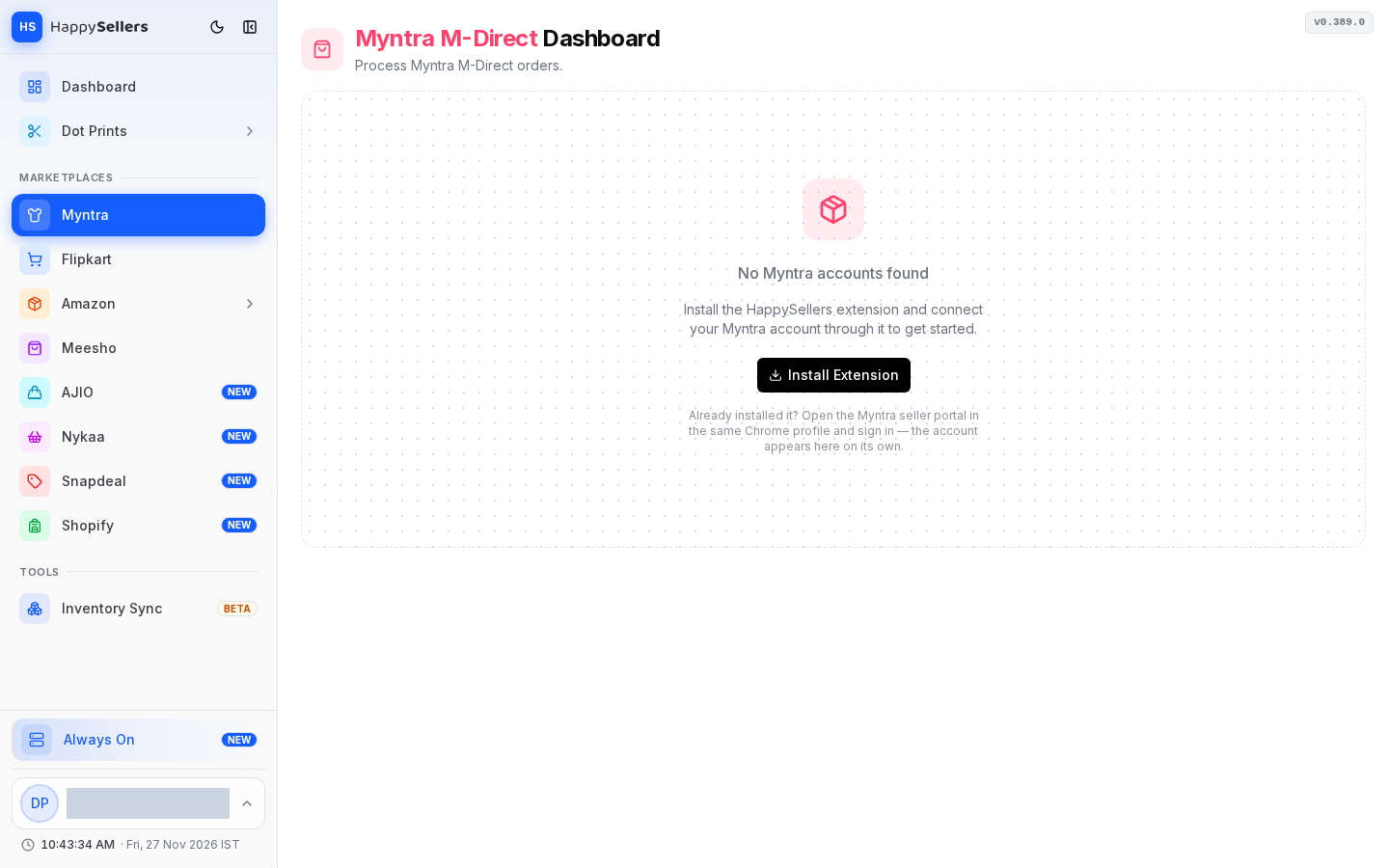
In the dashboard at https://app.happysellers.in, open Marketplaces → Myntra in the sidebar. The page is called Myntra M-Direct Dashboard.
Before you start
- The HappySellers Chrome extension is installed and signed in to your HappySellers account. If it is not, click Install Extension on the page.
- The Myntra seller portal is open and signed in, in the same Chrome, with the extension active. Your Myntra account then appears as a tab on the page.
- You have orders left on your plan, or add-on order credits. See https://happysellers.in/pricing.
Process your picklists
- Click the account tab you want to work on.
- Pick your warehouse from the Select Warehouse menu. If it is empty, use Refresh Pincodes in the same menu.
- Click Fetch Picklists. Your M-Direct picklists are listed with their status, type, orders and quantity.
- Tick the picklists to process, or use the tick box at the top to select all. Picklists you tick together must have the same status.
- Click Process Selected. HappySellers checks your plan and credits first.
- In the Process window, choose your Processing Options (see the table below) and click Start Processing.
- Each picklist shows its progress. When it is done, it is marked Processed.
- Tick the processed picklists and click Create Batch.
- In the Create Batch window, pick the Batch Type and Sort Order, add a Batch Tag if you like, and click Create Batch. The batch is ready within a minute.
- Under Batches, click File for the combined PDF and Picklist for the picklist sheet. Print and pack.
More tools on the page
- Generate Picklist makes new Myntra picklists from new orders that do not have one yet. Tick the orders, set Orders per picklist (up to 100), and click generate. Orders on hold cannot be picked.
- Fetch Missing Picklist fetches one picklist by its ID (it starts with "op") when it does not show in the list.
- Myntra Tags is your seal tag pool for this account. View Tags, Add Tags (one per line or comma-separated) and Remove Recent.
- Packet Serials is your packet serial pool. View Serials, Add Serials, Remove Recent, Download Excel and Product Mapping (map a SKU to a packet name so each product uses its own packets). Serials are always used lowest number first.
- Show Processed lists picklists you have already processed, so you can select them and click Process Again.
- Missed Orders (beside each day under Batches) checks a date range for Myntra orders that HappySellers has not processed, and lets you Recover & Create Batch.
- On a batch card you can also Generate SKU Zip, edit the batch tag, or Recreate the batch with other settings.
Options
| Option | What it does |
|---|---|
| Process with Tags | Turn on if your orders need RFID seal tags. Tags come from your Myntra Tags pool. |
| Print tag next to SKU | Prints the seal tag to the left of the SKU on the shipping label. |
| Skip seal tag | When Myntra asks for a seal tag and none is left, the order goes without one, like Myntra's own Skip button. |
| Use Packet Serial Numbers | Single orders take the next serial from your pool. Multi-item packets ask you to enter it. |
| Product-wise packet serials | Single orders use the next serial of the packet name their SKU is mapped to. |
| Common Packet Barcode | One barcode used for all orders. Leave blank to use each order's own. |
| SKU Font Size | Size of the SKU text on the shipping label (7 pt by default). |
| Packet Serial Font Size | Size of the packet serial on the label (6 pt by default). |
| Skip invoice if invoice download fails | Under Advanced Settings. If Myntra will not give an invoice after a retry, the label is saved and the run goes on. |
| Batch Type | Shipping labels only, Invoices only, or Shipping & invoices both. |
| Sort Order | Sort by SKU, Sort by Tag, SKU order count, Sort by Packet Serial or Sort by In Transit. |
| Move Multi Orders | Put multi-item orders at the bottom, at the top, or leave them where the sort puts them. |
| Invoice at label size | Prints each invoice on a 4x6 label-sized page instead of A4. Only when the batch has invoices. |
Your choices are remembered for each Myntra account.
Good to know
- Picklists Myntra created more than 48 hours ago and never completed are marked old. Select All skips them. If you tick one, you must confirm before processing, because processing packs those orders on Myntra and cannot be undone from HappySellers.
- If your plan and credits do not cover the orders, you see Cannot Process Orders with a link to Activate a Plan.
- If the seal tag pool has fewer unused tags than the units you selected, you are warned. The run can still start, and you are asked to scan or type a tag for the short packets.
- A packet waiting for a product-wise serial is skipped if nobody answers in 5 minutes.
- One browser tab runs one Myntra account at a time. To run two accounts together, open the second in its own tab or Chrome profile.
- If a picklist is only partly done when you batch it, the orders still to process move to a new pending picklist that you can select and process.
- If the overlay says Extension not connected to this account, open the Myntra seller portal with the extension active, or click Reconnect when it shows.
- The Batches list shows the last 4 days.
Related
FAQ
Is the SKU printed on Myntra labels?
Yes. HappySellers prints the SKU on every Myntra shipping label, and you can choose the font size.
Can I process more than one Myntra account?
Yes. Each account has its own tab. To run two accounts at the same time, open each one in its own browser tab or Chrome profile.
Why is a picklist not ticked when I click Select All?
It was created on Myntra more than 48 hours ago and never completed. Tick it yourself only if you really want to ship those orders.
Where do seal tags come from?
From the Myntra Tags pool for that account. Add your tags there before you process with tags turned on.
A picklist I need is not in the list. What do I do?
Type its ID in the box next to Fetch Missing Picklist and click the button to fetch it.