

Nykaa

Documentation

Nykaa
TL;DR
- Your Nykaa orders are grouped by SKU, with our status and Nykaa's status side by side.
- Processing raises Nykaa's invoice and AWB and saves the shipping label for each order.
- Pick the box for a run: Suggested, Per Order or Common.
- Processed lines go into a batch: labels, invoices or both, sorted the way you pack.
- Each seller code you sell from gets its own tab.
- Always On customers can process orders on a schedule.
The Nykaa panel processes your Nykaa orders in bulk. It is for any seller with a Nykaa seller account.
Where to find it
Marketplaces → Nykaa in the left sidebar.
Before you start
- The HappySellers Chrome extension is installed and signed in.
- You are signed in to the Nykaa seller portal in the same Chrome window. Your account is picked up automatically and appears as a tab named after your seller code.
- You have an active plan or credits. See Pricing and credits.
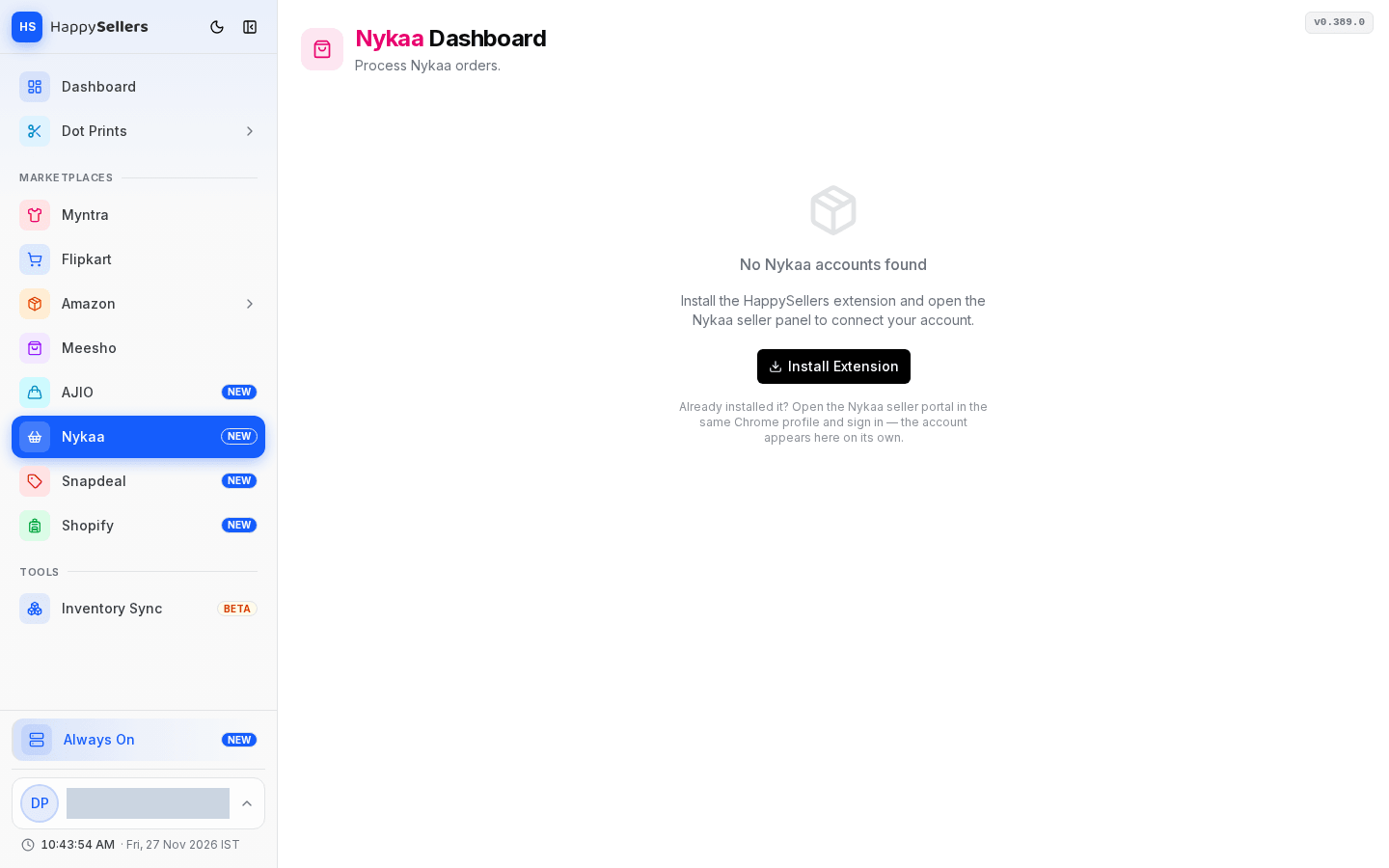
If no account shows yet, the panel says No Nykaa accounts found and offers Install Extension.
Process your Nykaa orders
- Pick your seller code tab at the top, if you have more than one.
- Click Fetch Orders. Pending orders load, one line per SKU and quantity.
- Use the date buttons to see one ship-by day, or press the highlighted date again to see every day.
- Tick the lines you want. Ticking a line ticks every order on it. The header tick lets you Select all pending or processed lines.
- Click Process Orders. The button shows how many orders are ticked.
- In the Process Orders popup, choose a Box Type and click Start Processing.
- Watch the progress bar. When a line is done, its status changes to Processed.
Make a batch to print
- Tick the processed lines you want to print together.
- Click Create Batch.
- Pick the Batch Type, an optional Batch Tag, how to Sort Orders By and where to Move Multi Orders.
- Click Create Batch. The batch card appears under Batches.
- When it is ready, click File to get the print file, or Picklist for the picklist.
Options
| Option | What it does |
|---|---|
| Box Type: Suggested | Uses Nykaa's own box size and the weight Nykaa holds for each SKU. An order whose SKU has no weight on Nykaa is skipped. |
| Box Type: Per Order | You choose a box size and weight for each order on the next step. |
| Box Type: Common | One box size and weight for every order in the run. Pick a listed size or Custom L × B × H, then the weight in kg. |
| Batch Type | Shipping labels only, Invoices only, or Shipping & invoices both. |
| Batch Tag | Your own name for the batch, such as the packer's name. Shown on the batch card. |
| Sort Orders By | Sort by SKU, or SKU order count (SKUs with the fewest orders first). |
| Move Multi Orders | Multi-item orders print at the end (Bottom) or the start (Top) of the batch. |
| Auto-processing | Opens the schedule popup. Always On customers only. |
Your box type, box, batch type, sort and multi-order choices are remembered for each seller code.
Processing on a schedule
The Auto-processing button at the top of the page opens a schedule for one seller code. It runs through the HS Always On extension only, so you need an active Always On plan; otherwise the popup says Always On feature is required for processing and offers Go to Always On.
- Run every so often (Every…) or At specific times.
- Set a Processing window (IST) and a Box (Suggested or Common).
- Click Save. Orders on hold are left out.
- Batches are never made automatically. Scheduled orders wait on this page for you to batch them.
Good to know
- Nykaa's invoice and AWB cannot be undone once an order is processed.
- An order Nykaa holds shows as On hold and cannot be ticked until Nykaa releases it.
- If Nykaa invoiced an order but its label was not saved, process it again to fetch the label. You are not charged twice.
- Unprocessed orders older than 5 days are hidden from the list. Nothing is deleted.
- Batch cards show the last 4 days. A finished or failed batch can be rebuilt with Recreate.
- On a finished batch, Generate SKU Zip prepares a SKU zip for it; when it is ready, Download SKU Zip appears.
- Suggested and Per Order need an up-to-date extension. If yours is older, the popup asks you to update it and only Common starts.
- While one account is processing in a tab, you cannot switch that tab to another Nykaa account.
- If the table says Extension not connected, open the Nykaa seller portal signed in as that seller code, with the extension active, or click Reconnect.
Related
FAQ
Do I need to keep the Nykaa seller portal open?
Yes. The extension works through your signed-in Nykaa seller portal in Chrome, so keep it open while you fetch and process.
Why can I not tick some orders?
They are on hold on Nykaa. They can be processed once Nykaa releases them.
Will I be charged again if I process an order twice?
No. An order you have already paid for is never charged twice, even if you process it again to fetch a missing label.
Can HappySellers process Nykaa orders without me?
Yes, if you have Always On. Set a schedule with the Auto-processing button; you still make the batches yourself.
Can I add more than one Nykaa account?
Yes. Each seller code you sign in with gets its own tab on the panel.