

Set up HappySellers

Documentation

Set up HappySellers
TL;DR
- Sign up with Google or with your email, name, WhatsApp number and a password.
- New accounts go through three short welcome steps: verify your email, answer seven quick questions, verify your WhatsApp number.
- Add the HappySellers extension from the Chrome Web Store; there is nothing else to install.
- Click the extension icon to sign it in, or just sign in to the dashboard in the same Chrome.
- Sign in to your seller portal in the same Chrome profile and your account shows up by itself.
This guide takes you from a new account to your first marketplace account showing on the dashboard. It takes a few minutes.
Where to find it
- Sign up: app.happysellers.in/register
- Sign in later: app.happysellers.in
Before you start
- Google Chrome on a computer.
- The email and WhatsApp number you want to use for HappySellers.
- Your marketplace seller portal login.
Create your account
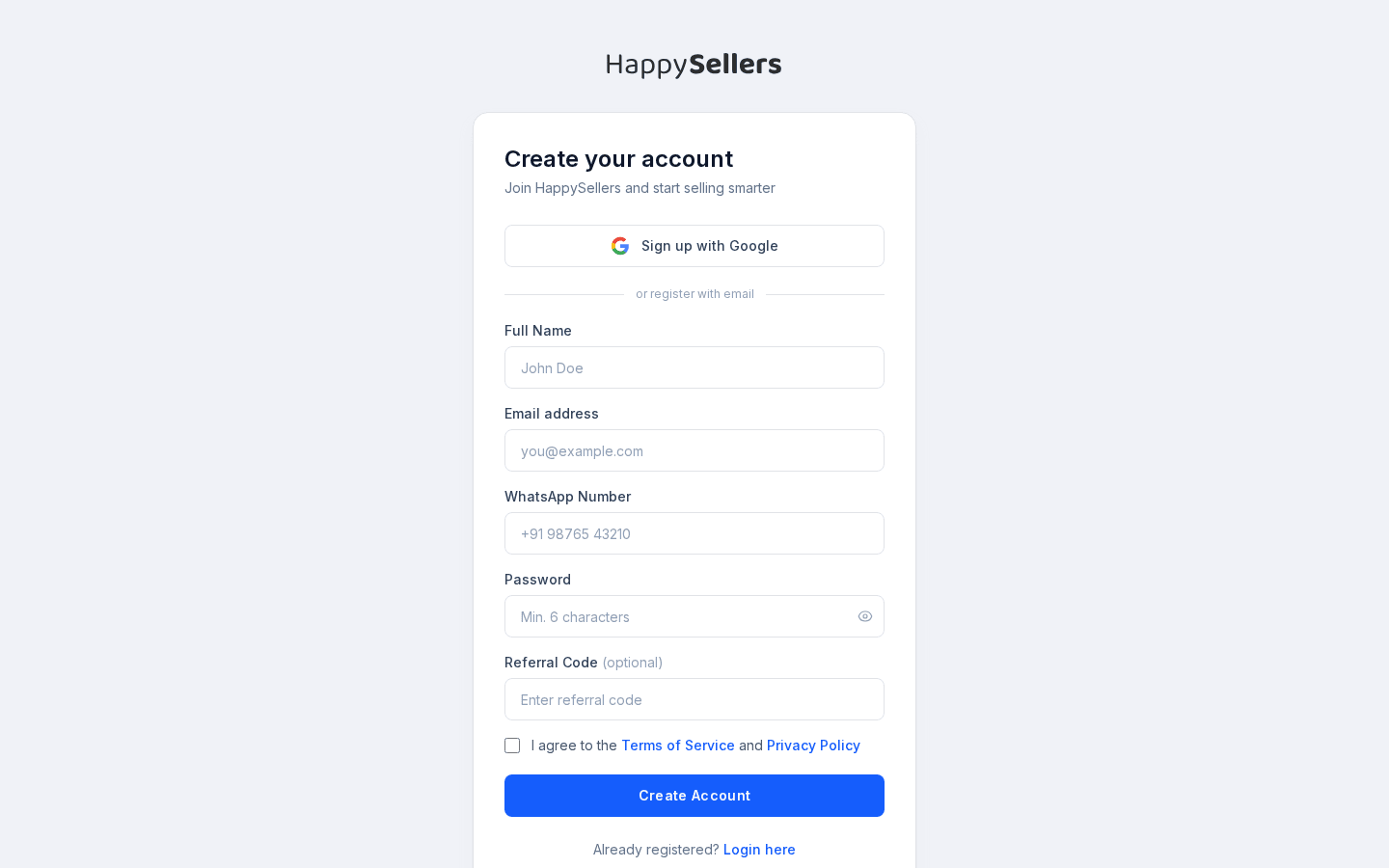
- Open app.happysellers.in/register.
- Press Sign up with Google, or fill in Full Name, Email address, WhatsApp Number and Password (at least 6 characters).
- If a friend gave you a code, enter it in Referral Code (optional).
- Tick I agree to the Terms of Service and Privacy Policy and press Create Account.
You are signed in and taken to the dashboard.
The welcome steps
Before the dashboard opens, a new account sees Welcome to HappySellers with three short steps. They cannot be skipped.
- Verify your email address. Press Send verification code, enter the code from your inbox and press Verify. The code is valid for one hour. If you signed up with Google, this step is already done.
- Tell us about your business. Seven quick questions, such as which platforms you sell on and how many orders you process a day. Press Finish and continue.
- Verify your WhatsApp number. If you signed up with Google, enter your number first and press Save number. Then press Open WhatsApp and send to send us the code from that number, and press I have sent it. The page checks on its own every few seconds.
When you see You are all set, press Open my dashboard.
If the name on your account does not look like a person's name (for example a shop name), you are asked once to enter your own First name and Last name.
Install the Chrome extension
- Open the HappySellers extension on the Chrome Web Store. You can also press Install Extension on any marketplace page.
- Click Add to Chrome and confirm the install.
- Pin the extension to your toolbar if you like, so it is easy to find.
There are no files to download. The extension comes straight from the Chrome Web Store and updates itself.
Sign the extension in
- If you are already signed in to the dashboard in the same Chrome, the extension signs in on its own.
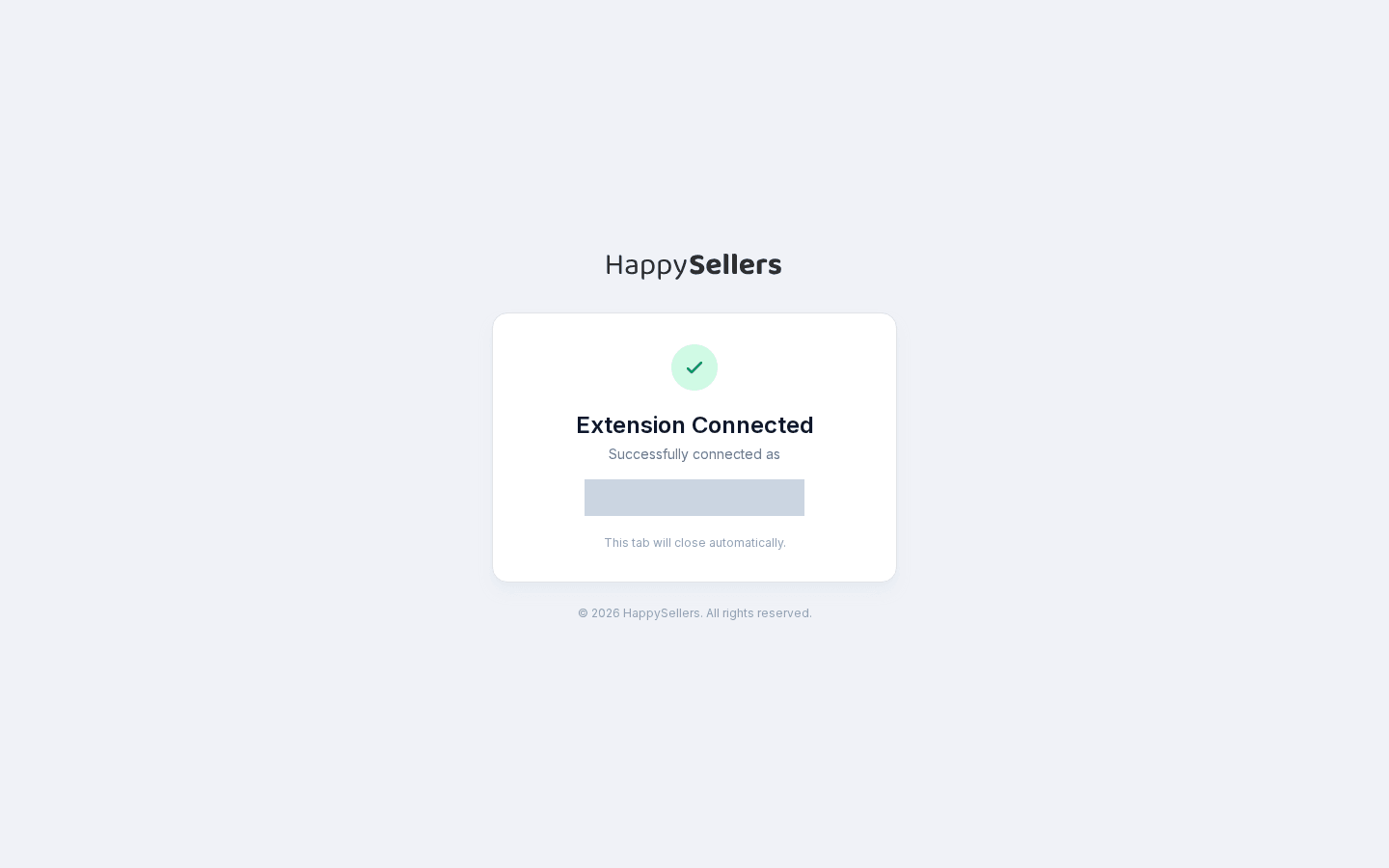
- If not, click the HappySellers icon in your toolbar. A tab opens, shows Connecting Extension, then Extension Connected with your email, and closes by itself.
Once signed in, the icon shows a green tick. Click it to see the Connected Account, your Marketplace Accounts, and the Connect a Marketplace buttons that open each seller portal.
Connect your marketplace account
- Open your seller portal in the same Chrome profile. The Connect a Marketplace buttons in the extension open it for you.
- Sign in to the seller account you want to process orders for.
- Go back to the dashboard. The account appears on its marketplace page, and in Marketplace Accounts on the dashboard home page.
Sell from more than one account? Sign in to each one and each appears as its own tab on the marketplace page.
Options
| Option | What it does |
|---|---|
| Sign up with Google | Uses your Google account; no password and no email code needed. |
| Sign up with email | Uses your email and a password you choose. |
| Referral Code (optional) | Links your account to the friend who invited you. |
| Pin the extension | Keeps the HappySellers icon in your toolbar. |
Good to know
- "This email is already registered with us." Use Login here on the sign-up page instead.
- Full name must be 4 to 40 characters, letters and spaces only.
- "No Flipkart accounts found" (or the same for another marketplace) means the extension has not seen that account yet. Open the seller portal in the same Chrome profile and sign in.
- "Extension not connected to this account" means the extension is not reaching that account right now. Open the portal in Chrome and press Reconnect.
- Your billing address is asked for once, the first time you buy credits. See Credits and invoices.
Related
FAQ
Can I sign up with Google?
Yes. Press Sign up with Google on the sign-up page. Your email is then already verified, but you still add and verify your WhatsApp number.
Can I skip the welcome steps?
No. The three welcome steps must be finished before the dashboard opens. They take about a minute.
Is there anything to install besides the extension?
No. You only add the HappySellers extension to Chrome from the Chrome Web Store, and it updates itself.
How do I connect my marketplace account?
Sign in to your seller portal in the same Chrome profile as the extension. The account appears on the dashboard by itself.
My account does not show up. What should I do?
Check the extension icon shows a green tick and your email. Then open the seller portal in the same Chrome profile, sign in, and press Reconnect on the marketplace page.